SPSS for Students
Current Luther students can install IBM SPSS Statistics on their personally-owned Windows or macOS computers. The license is for educational use only.
Note: If you have an earlier version of SPSS installed on your computer, please uninstall it before continuing.
Download and install
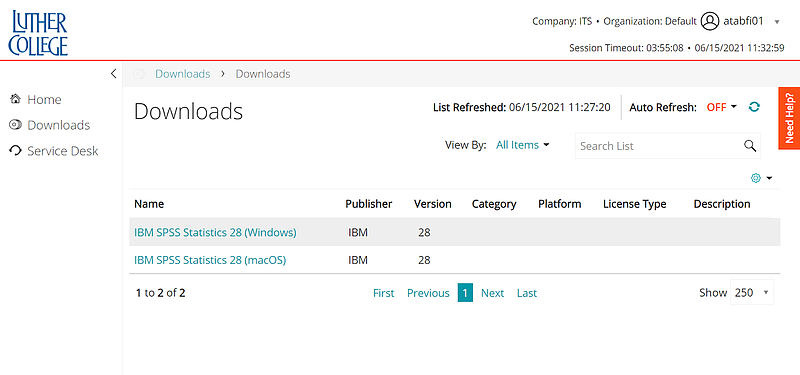
‘Downloads’ page from help.luther.edu
-
With the computer where you want to install SPSS, visit help.luther.edu and choose “Downloads” in the left sidebar.
-
Select “IBM SPSS Statistics (Windows)” or “IBM SPSS Statistics (macOS)” depending upon your operating system. Copy the license key from the following page page—you’ll need immediately after install.
-
Click “Run Now”. After a few seconds, you’ll see an orange install box.
-
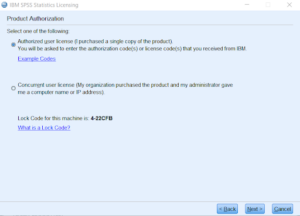
Product authorization process
The first time you run SPSS, you’ll be asked to license your copy with the “License Wizard”. Choose “Authorized License User” when given that option and use the license key from step 3 above. At the end of the licensing process, you should see green confirmation text.